Creator Guide
Applying, what happens next, and how to get set up once you are accepted.
The TapVid Creator Program works with UGC creators and on-camera talent to produce short-form content for brands. This guide walks through applying, what happens next, and how to get set up once you are accepted.
Everything happens at ugccreators.tapvid.ai.
Signing in — no password needed
You do not create a password and you do not need to remember one. Enter your email address and we send you a 6-digit code. Type the code in and you are signed in. The code expires after 15 minutes, and you get a new one every time.
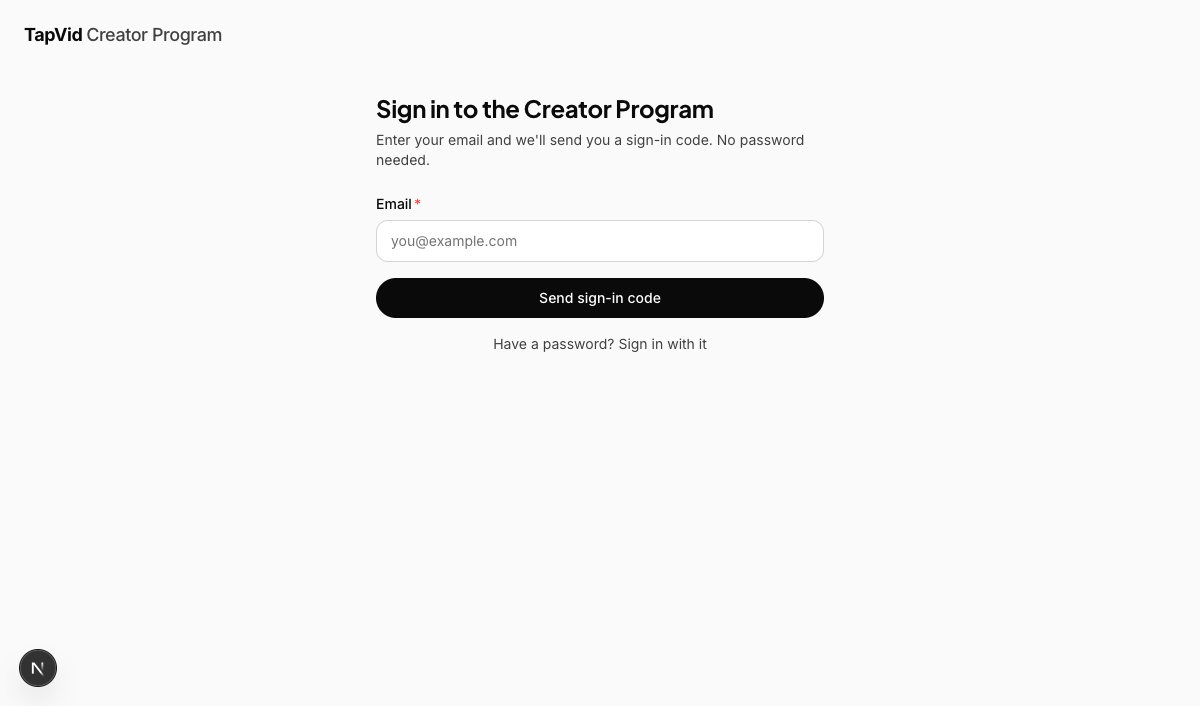
The same page handles your first visit and every visit after — there is no separate sign-up step. If you have never applied before, entering the code creates your account.
If you would rather have a password, you can set one from the Account page once you are signed in. That is optional. The email code always works, and it is what most creators use.
One thing worth knowing: this account is separate from a TapVid product account. If you already use TapVid to make videos, that login is a different thing and is unaffected.
Applying
The application takes about ten minutes. You can save a draft and come back — nothing is lost if you close the tab.
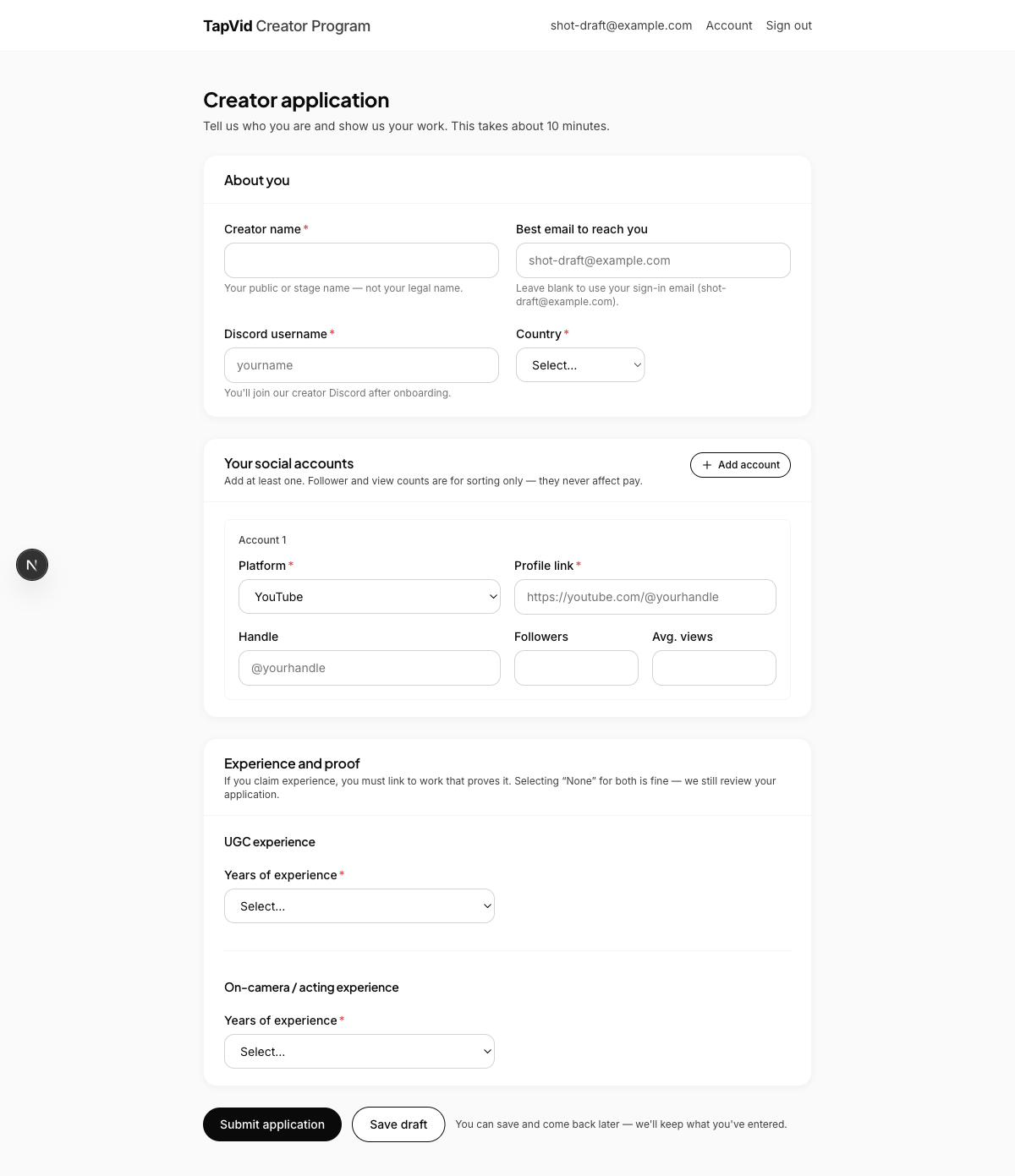
You will be asked for:
- Your creator name — the one you publish under, not your legal name
- A contact email, if you prefer we reach you somewhere other than your sign-in address
- Your Discord username, so we can find you in the creator server later
- Your country and state or province
- At least one social account, with follower and average view counts
- How much UGC and on-camera experience you have, and links that show the work
About follower counts. They are used for sorting and filtering on our side. They do not set your rate and they do not decide whether you are accepted.
About proof links. If you say you have UGC or on-camera experience, you need to link to work that shows it. Please make sure those links open without a login — a private or restricted link is the single most common reason an application gets sent back.
If you arrived through a Creator Leader's invite link, you will see their name at the top of the form. That is just recording who referred you.
After you apply
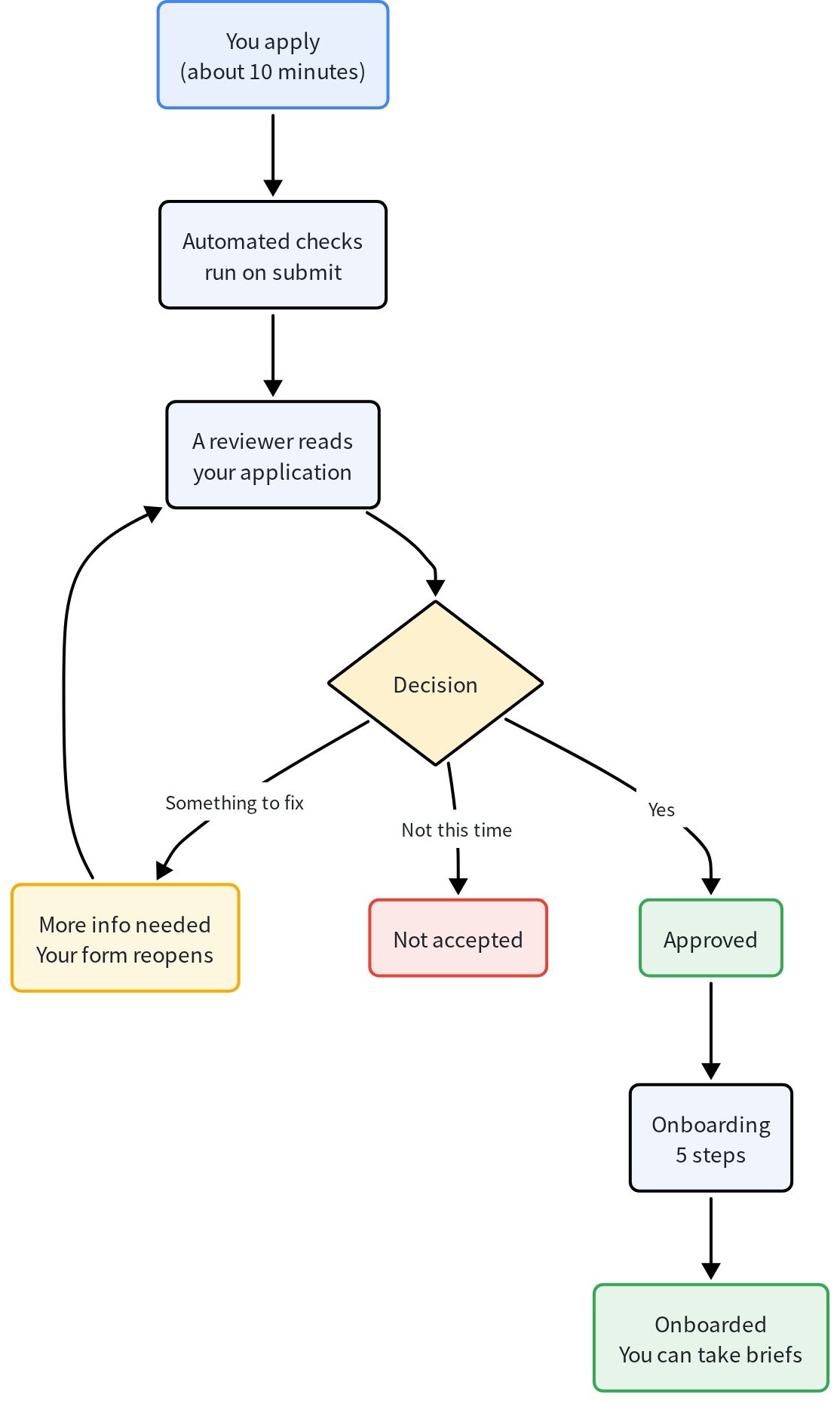
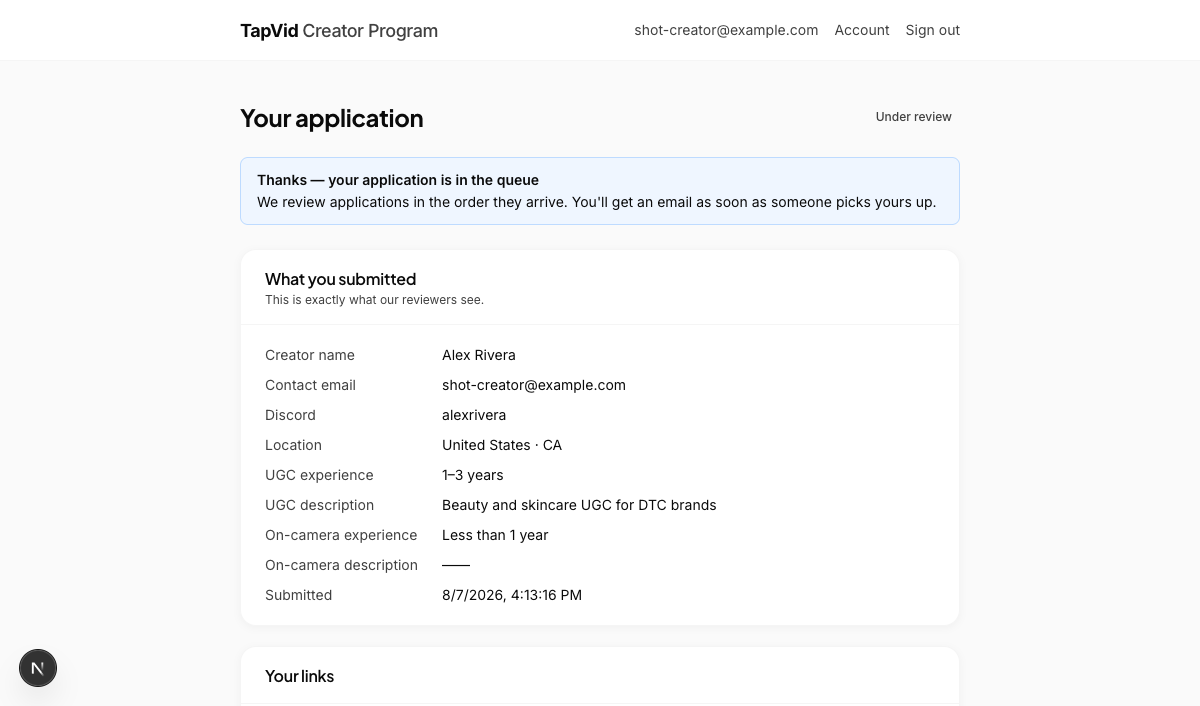
You get an email confirming we have your application, and your status page shows where things stand. You can check it any time by signing in.
| Status | What it means |
|---|---|
| Under review | You are in the queue, or someone is reading your application now. Nothing for you to do. |
| More info needed | We need something fixed or added. The email tells you exactly what, and your form reopens so you can edit and resubmit. |
| Approved | You are in. There are a few onboarding steps left before you can take briefs. |
| Not eligible | We are not working with creators in your market at the moment. We keep your details on file and will reach out if that changes. |
| Not accepted | We are not moving forward this time. |
| Onboarded | Everything is done. Watch your inbox and the Discord for briefs. |
If you remember something after submitting. The form locks once you submit, because reviewers need a stable version to read. If you realise you left something out, there is a button on your status page to tell us — we will reopen the form if it matters.
Onboarding, step by step
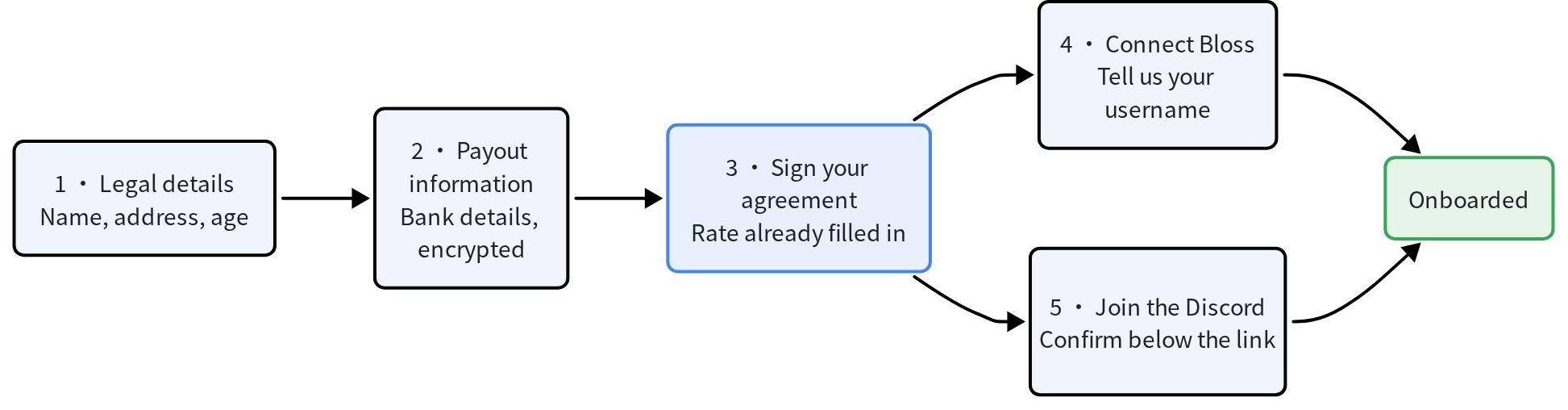
Once you are approved, five steps stand between you and your first brief. They unlock in order.
1. Your legal details. Full legal name, address, and confirmation that you are 18 or older. Your legal name must match the name on your bank account — this is what goes into your agreement, so take a moment over it. US ZIP codes and Canadian postal codes are checked for format, and a phone number is optional (we will not call you; it is only used if there is a problem paying you).
2. Payout information. Choose bank transfer or PayPal — you fill in one or the other, not both. If you choose bank transfer, two things have to be true: your bank must have a SWIFT / BIC code and accept international transfers (we pay you from abroad, and some online-only banks and small credit unions cannot receive those), and the account must be your own, in the same legal name as on your application. An account opened by or for someone else cannot be used, even with their permission. If neither works for you, use PayPal. More on how all of this is handled below.
3. Read and accept your agreement. Your agreement is generated with your details already filled in, including your rate. Read it to the bottom — the box stays disabled until you scroll through. Ticking it and submitting has the same effect as signing: we record your account, the version you accepted, the date and time, your IP address and your device. You will get a PDF copy by email immediately, and you can download it any time from your account.
4. Connect Bloss. Bloss is where we track the content you publish. Open your invite link, sign up, then tell us the username you chose so we can match your content to you.
5. Join the Discord. Briefs, questions and payment updates all happen in the creator Discord. Join, then confirm below the link. You can correct your Discord username here if it differs from what you entered when applying.
Finish steps 4 and 5 and you are fully onboarded. If you stall partway, we send a reminder two days and five days after you sign — not to nag, just in case it slipped.
If we send you a new agreement
Your agreement is not necessarily the last one you will sign. The usual reason we send a new one is that your rate is going up. Sometimes it is because our lawyers have revised the wording.
When that happens you will get an email, and a banner appears when you sign in. Open it, read the new agreement all the way through, and tick the box to accept — the same way you did the first time. It is a new agreement, not an amendment, so read it rather than skimming for the number.
Nothing changes until you accept it. Your current agreement, including your current rate, stays in force for as long as you take. There is no deadline and no penalty for reading it carefully. If something looks wrong, email us before you accept rather than after.
Once you accept, the new agreement takes over and the old one stops applying — but it does not disappear. Every agreement you have ever accepted stays listed in your account with a download link, so you can always check what you were on and when it changed.
How your bank details are handled
This is the part people ask about most, so plainly:
Your account number, routing number and SWIFT code are encrypted before they are stored. They are kept separate from the rest of your application.
Creator Leaders — including whoever referred you — cannot see your banking information at all, not even the last four digits. That restriction is enforced at the database level, not just hidden in their interface.
TapVid staff see only the last four digits by default. Viewing the full details takes a deliberate action, and every single view is logged with who looked, when, and at whose record.
You only ever see the last four digits yourself when you come back to the page. If your application is not accepted, your banking details are automatically deleted 90 days later.
One thing to get right: the account holder name should match your legal name exactly. If they differ we will still accept it, but our finance team has to check it manually before paying, which slows your first payment down. What we cannot accept is an account belonging to someone else — a parent, partner or friend. The person we pay has to be the person who signed the agreement.
Emails we send you
Everything from us comes from TapVid Creator Program at official@tapvid.ai. You will hear from us when your sign-in code is requested, when we receive your application, when a reviewer picks it up, when there is a decision, when you sign your agreement (with the PDF attached), and if you stall during onboarding.
If a code does not arrive within a couple of minutes, check your spam folder before requesting another one.
Getting help
Email creators@sigmatrx.ai, or once you are onboarded, ask in the creator Discord — that is usually faster.
If you have lost access to the email address on your account, email us from wherever you can reach us. Since sign-in is by email code, we need to sort that out before you can get back in.